
How to pack computers for moving safely is a question every business faces during relocation. Computers contain sensitive components—motherboards, hard drives, and cooling systems—that damage easily from shock, vibration, or static . A single mistake can cost thousands in repairs or permanent data loss. This guide walks you through professional packing methods that protect your investment. With 12+ years moving Regina businesses and 24k+ successful relocations, we’ve learned exactly what works. Follow these steps and your technology will arrive ready to work.
Why Computer Packing Requires Special Care
Computers aren’t like other office furniture. They’re精密 instruments with delicate internal parts. Hard drives spin at thousands of RPMs. Graphics cards hang from motherboards by small connectors. Processors sit under heavy cooling fans.
During a move, vibrations and impacts transfer directly to these components. A sudden stop can crack solder joints. A tipped box can snap a graphics card off its mount. Static electricity can fry circuits without visible damage .
The stakes are higher for businesses. Your computers hold client data, financial records, and years of work. Losing them means more than replacement costs—it means lost productivity, frustrated employees, and potential security breaches.
Professional office computer relocation tips start with understanding these risks. Once you know what can go wrong, you can take steps to prevent it. That’s exactly what this guide delivers .
Preparation Steps Before You Pack
Great packing starts long before you touch a box. Proper preparation prevents problems and saves time.
Here’s your computer moving checklist for preparation:
- Back up all data. Use the 3-2-1 rule: three copies, two media types, one off-site . Cloud backups protect you even if hardware fails
- Document your setup. Take photos of cable connections at the back of each computer. This visual reference simplifies reassembly later
- Inventory everything. List every computer, monitor, and peripheral. Include serial numbers for insurance purposes
- Gather proper supplies. You’ll need anti-static bags, bubble wrap, sturdy boxes, packing tape, and labels
- Clean your equipment. Dust fans and vents so debris doesn’t settle during transit
Why this matters. Rushed packing leads to lost cables, forgotten passwords, and damaged components. Taking time upfront prevents these headaches. Your future self will thank you when everything powers on correctly .
How to Pack Desktop Computers
Desktop towers need the most protection. Their size and weight make them vulnerable during moves. Follow these packing desktop computers steps for safety.
Start by powering down completely. Unplug from the wall and wait two minutes for residual power to dissipate . Then disconnect all cables, labeling them as you go.
Now decide about internal components. For short moves, you might leave parts installed. For long moves or rough handling, remove key components :
- Graphics cards. These are heavy and hang loosely. Remove and pack separately in anti-static bags
- Hard drives. Store drives in padded containers away from the main case
- RAM sticks. Remove if you’re comfortable, though they usually stay seated during moves
Secure the case interior. If leaving parts installed, use foam or bubble wrap inside to prevent shifting . Tape the side panel shut so it doesn’t open during transport.
Wrap the tower in bubble wrap, focusing on corners. Place it upright in a sturdy box with padding on all sides . Fill gaps so nothing moves when shaken. Seal and label “FRAGILE – COMPUTER – THIS SIDE UP” .
Packing Laptops and Peripherals
Laptops need different handling than desktops. Their all-in-one design makes them simpler but still requires care.
For packing laptops for moving, follow these steps:
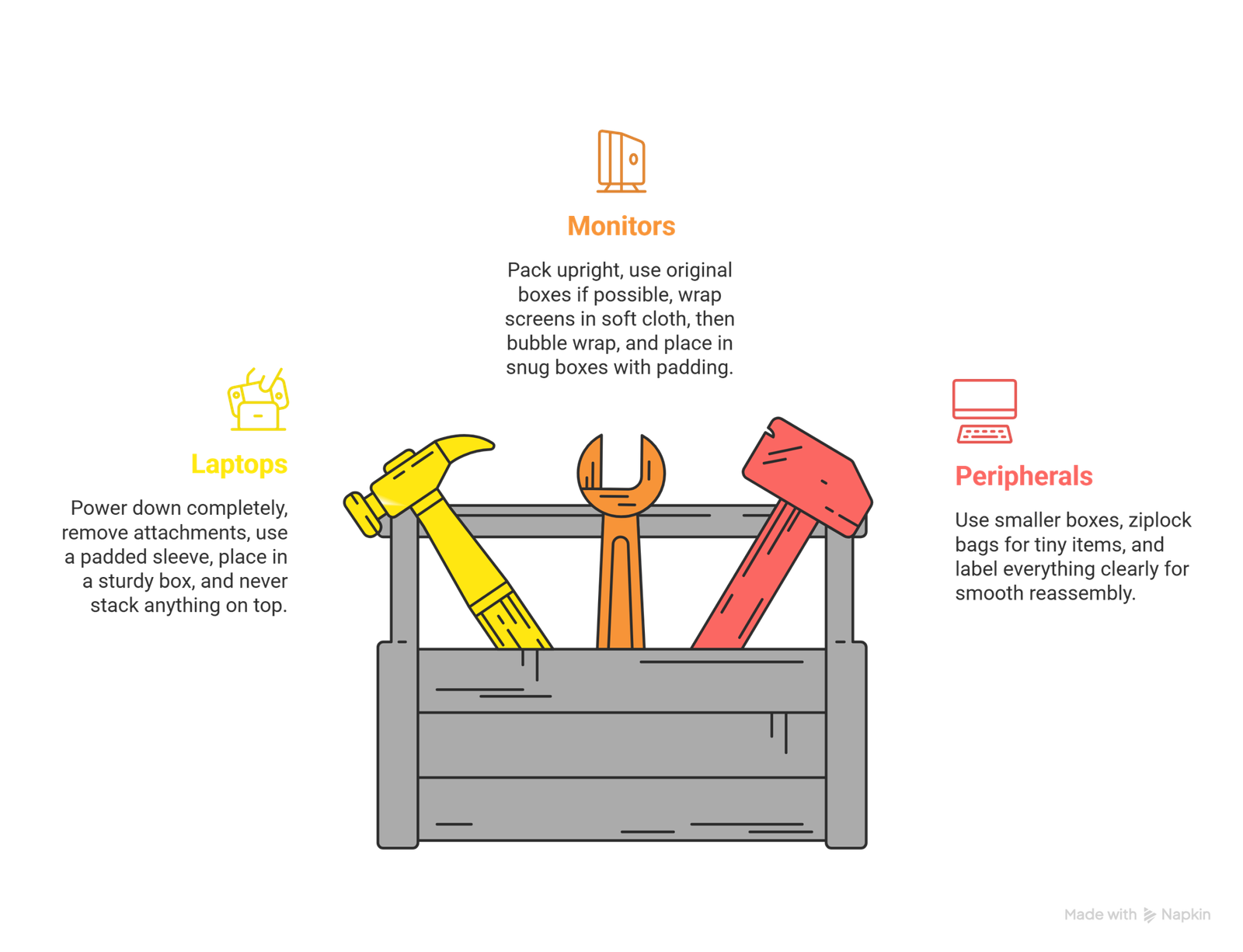
- Power down completely. Don’t just close the lid—shut down properly
- Remove any attachments. Take out USB dongles, external batteries, and SIM cards
- Use a padded sleeve or wrap in anti-static bubble wrap
- Place in a sturdy box with cushioning around all sides
- Never stack anything on top of laptop boxes
Monitors require special attention too. Their screens crack easily under pressure. Always pack them upright—never lay flat . Use original boxes if you kept them. Otherwise, wrap screens in soft cloth first, then bubble wrap. Place in snug boxes with padding at corners.
Keyboards, mice, and webcamps go in smaller boxes. Use ziplock bags for tiny items like USB receivers and power adapters . Label everything clearly so reassembly goes smoothly.
Handling IT Equipment and Servers
Servers and network equipment need professional-level care. These aren’t standard computers—they’re business-critical infrastructure.
Professional office IT equipment relocation follows strict protocols:
- Inventory every component. Document serial numbers, configurations, and network settings before disconnecting
- Use anti-static materials. Wrap all circuit boards and drives in ESD-safe bags
- Label cables meticulously. Server rooms have dozens of connections. Photos and labels prevent chaos during reconnection
- Transport in climate-controlled vehicles. Servers dislike extreme temperatures. Professional movers use trucks with temperature control
Consider hiring specialists for server moves. At Regina Moving, our trained crews handle IT equipment daily. We understand the difference between standard computers and critical infrastructure. Our zero claim rate proves our approach works .
Transport and Setup After the Move
How you transport computers matters as much as packing. Even perfectly packed boxes can suffer damage from rough handling.
Follow these secure computer packing transport tips:
- Keep computers in your vehicle if possible. Climate control and stable rides protect better than moving trucks
- Load boxes upright and on top. Never stack heavy items on computer boxes
- Avoid leaving in parked vehicles. Temperature swings damage electronics quickly
- Move carefully around corners. Bumping walls transfers shock to internal components
After arriving, let equipment acclimate. If moved in extreme temperatures, wait 1-2 hours before powering on . This prevents condensation inside cases.
Unpack carefully and inspect for visible damage. Use your reference photos to reconnect cables correctly . Power on and test everything. Listen for unusual noises and check that all drives are detected .
Regina Moving Handles Your IT Equipment Safely
You’ve learned how to pack computers for moving. Now let experts handle the heavy lifting. With 12+ years of experience and 24k+ successful moves, Regina Moving specializes in office IT equipment relocation that protects your investment.
Our trained crews use anti-static materials, climate-controlled trucks, and careful handling protocols. We coordinate with your IT team to ensure seamless transitions. Weekend moves? After-hours scheduling? We adapt to your business needs while keeping your equipment safe.
👉 Book Your Office Move Date Today and get a free, no-obligation quote. Let Regina’s most trusted commercial movers protect your technology during relocation.
Top 5 FAQs About Packing Computers for Moving
Should I remove the hard drive before moving?
Not necessarily. For short moves, leaving it installed is fine if properly padded. For long moves, removing and carrying separately adds extra protection .
Can I use regular bubble wrap for computers?
Use anti-static bubble wrap for sensitive components. Regular bubble wrap generates static that can damage electronics .
How do I pack cables and cords?
Group cables by device, use twist ties or Velcro straps, and label each bundle. Store in ziplock bags taped to the corresponding device .
Is it safe to transport computers in extreme weather?
Avoid extreme temperatures if possible. Heat above 100°F can damage components. Cold causes condensation when warming up. Use climate-controlled transport .
Should I pack printers differently than computers?
Yes. Remove ink cartridges first to prevent leaks. Secure any moving parts with tape. Wrap carefully to prevent misalignment .
